
Zed Editor Quick Switch to Sigma MaaS
Add Sigma MaaS to Zed Editor as an OpenAI-compatible provider and start using hosted models through a clean English configuration flow
Zed Editor supports custom LLM providers through an OpenAI-compatible API. With Sigma MaaS, you can configure Zed once and use Sigma-hosted models for chat, coding assistance, and tool-enabled workflows.
Table of Contents
Prerequisites
| Requirement | Details |
|---|---|
| Zed Editor | Installed and running on your system. |
| Sigma API Key | Create or copy your API key from Sigma Studio. |
| Global API Base URL | https://api.sigmaauto.ai/api/v1 |
| Recommended Starter Model | gpt-5 |
Open the Assistant Panel
In Zed, click the assistant icon in the lower-right toolbar to open the AI assistant and provider settings flow.
Use the toolbar action highlighted in the screenshot to open the assistant-related configuration area.

Add Sigma as a Provider
In the LLM Providers screen, add a new provider using the OpenAI-compatible option.
Click Add Provider, then choose OpenAI under Compatible APIs.
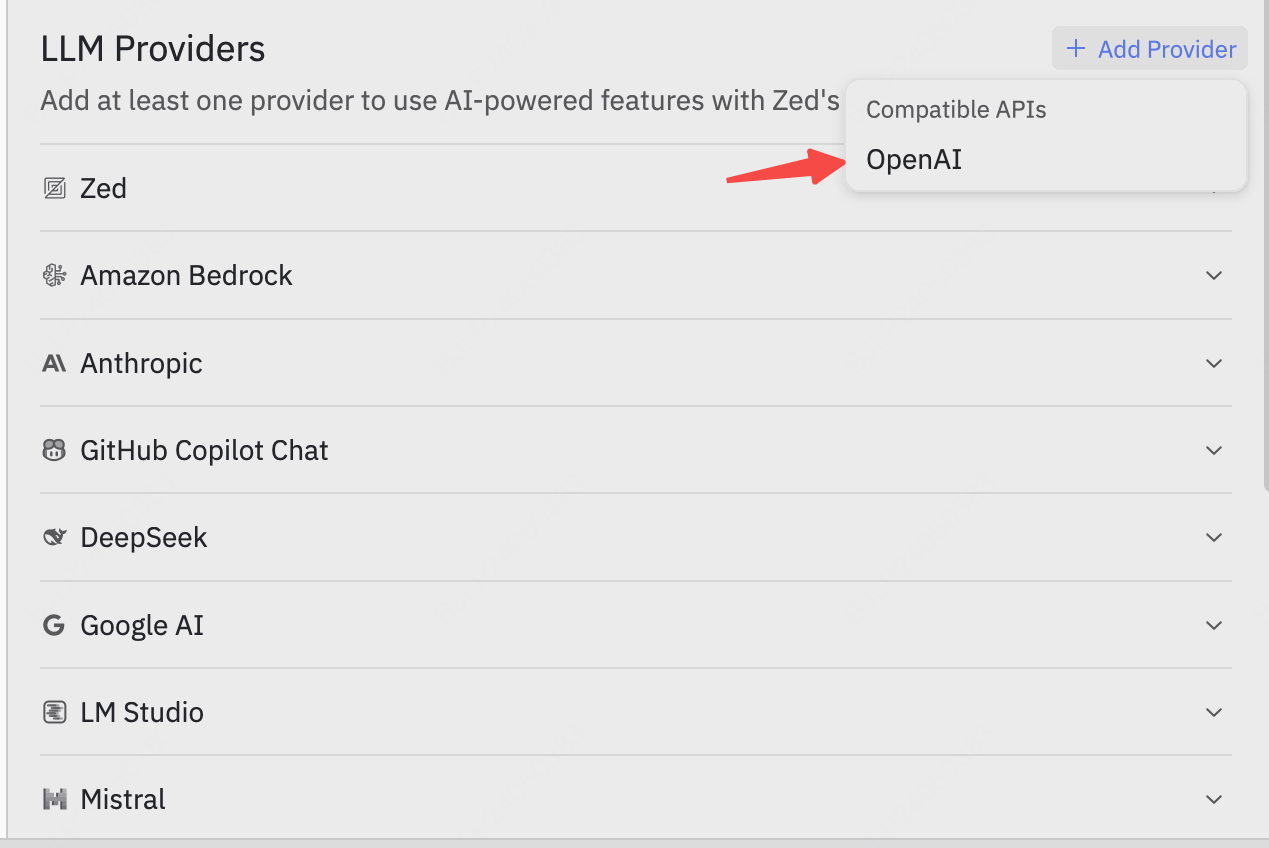
Zed uses the OpenAI-compatible provider path for Sigma MaaS. You do not need to choose a separate vendor-specific integration for this setup.
Fill Provider Settings
Complete the provider form using Sigma values. The example below uses gpt-5 as the first model.
| Field | Value |
|---|---|
| Provider Name | SigmaAI |
| API URL | https://api.sigmaauto.ai/api/v1 |
| API Key | Your Sigma API key |
| Model Name | gpt-5 |
| Max Completion Tokens | 200000 |
| Max Output Tokens | 32000 |
| Max Tokens | 200000 |
| Supports tools | Enabled |
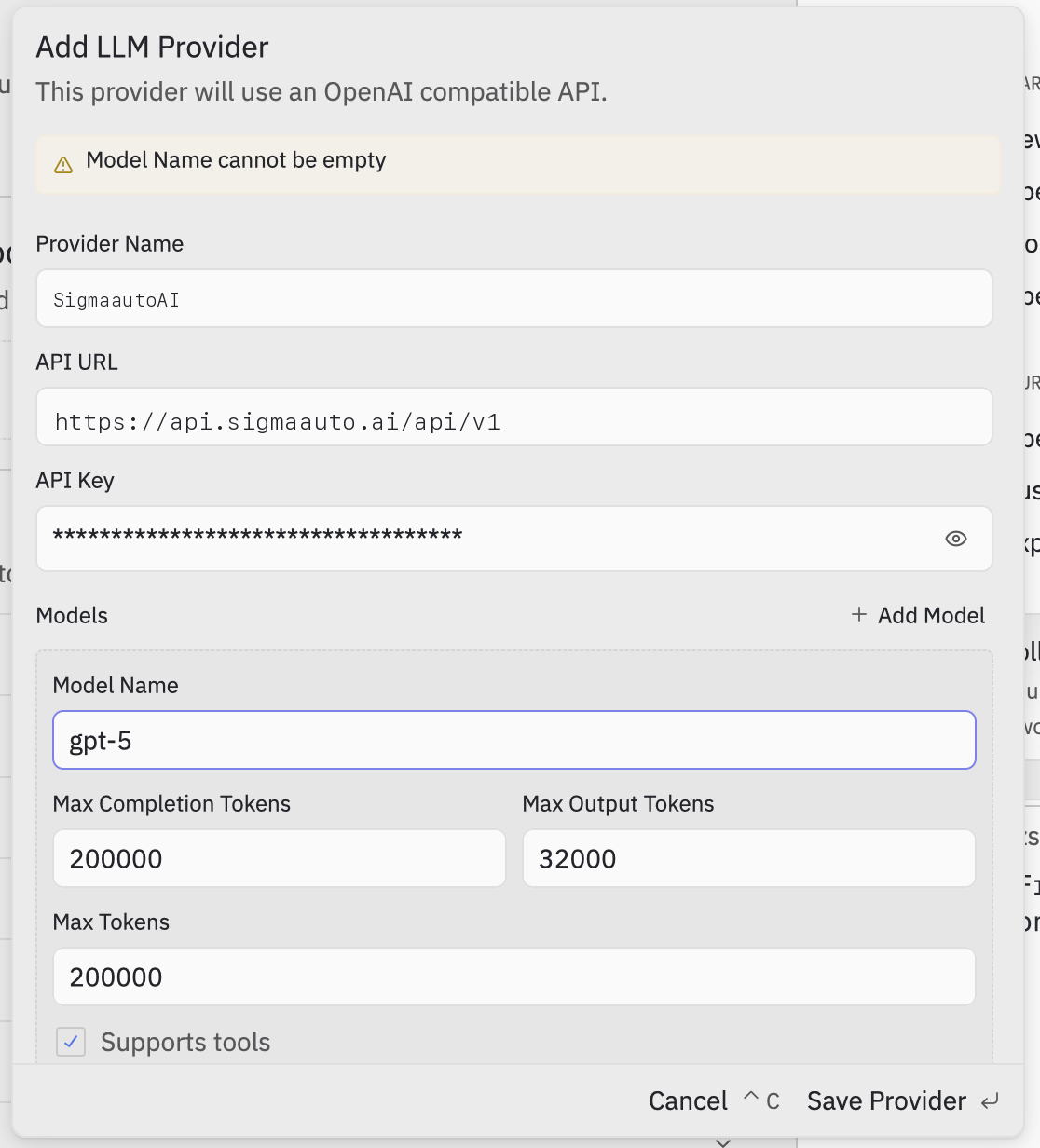
Important: Make sure the API URL ends exactly with /api/v1. Using the wrong base path will prevent Zed from reaching the OpenAI-compatible endpoints correctly.
Suggested Model Options
| Model | Use Case |
|---|---|
gpt-5 | Balanced general-purpose coding and reasoning |
gpt-5.4 | Latest GPT option for advanced tasks |
gpt-4o | Fast multimodal interactions |
glm-5.1 | Alternative OpenAI-compatible flagship model |
Verify the Setup
After saving the provider, return to Zed assistant features and start a short test interaction.
Save the provider, then open a chat or assistant workflow in Zed and submit a short prompt to confirm the model responds correctly.
If you want to add more models later, repeat the same provider pattern or extend the provider configuration with additional model entries supported by your Zed version.
Summary
You now have a complete English setup flow for Zed Editor with Sigma MaaS:
- Open the assistant panel from the Zed toolbar
- Add a new OpenAI-compatible provider
- Set the API URL to
https://api.sigmaauto.ai/api/v1 - Configure the first model as
gpt-5 - Save and test the provider inside Zed